Keyboard shortcuts
Default keyboard shortcuts in the OpenInspect web app and how to rebind them under Settings › Keyboard.
The web app has four keyboard shortcuts. All of them can be rebound under Settings › Keyboard.
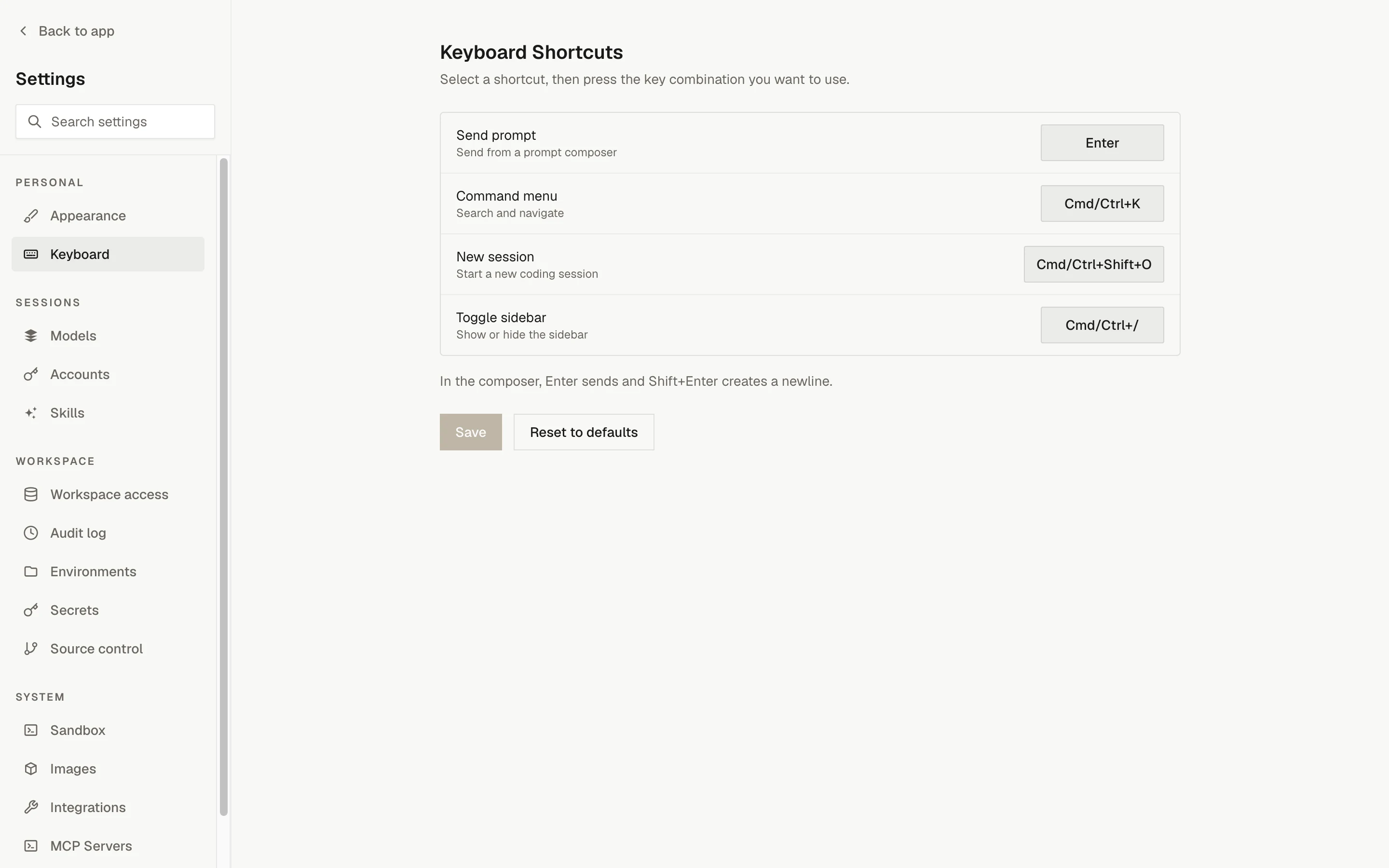
Default bindings
The primary modifier is Cmd on macOS and Ctrl on Windows and Linux.
| Action | macOS | Windows / Linux | Where it applies |
|---|---|---|---|
| Send prompt | Cmd+Enter | Ctrl+Enter | A prompt composer only |
| Command menu (search and navigate) | Cmd+K | Ctrl+K | Everywhere |
| New session | Cmd+Shift+O | Ctrl+Shift+O | Everywhere |
| Toggle sidebar | Cmd+/ | Ctrl+/ | Everywhere |
In the composer, the Send prompt binding sends the message and Enter inserts a newline. If you rebind Send prompt to plain Enter, Shift+Enter inserts the newline instead. The settings page shows the current pair below the shortcut list.
Rebind a shortcut
- Open Settings › Keyboard.
- Click the binding next to the action you want to change. The button reads "Press shortcut" while it is recording.
- Press the key combination. Press Escape to stop recording without changing anything.
- Click Save. The page confirms with "Keyboard shortcuts saved."
Click Reset to defaults to restore the table above, then Save.
Binding rules
| Rule | What you see |
|---|---|
| A primary (Cmd/Ctrl) or Alt modifier is required. Send prompt is the exception: it may be plain Enter, with or without Shift. | The combination is not recorded |
| A modifier key on its own (Shift, Ctrl, Alt, Cmd) is not a binding. | The combination is not recorded |
| Two actions cannot share one binding. | "This shortcut is already in use." under the action, and Save is disabled until you change one of them |
Shift alone is not a sufficient modifier for the three global actions, so Shift+K is rejected while Ctrl+Shift+K is accepted.
Next steps
Deployment overview
What an OpenInspect deployment consists of, what the operator configures once, and where the self-hosting, setup, and debugging guides live.
Status reference
Every status value OpenInspect shows for sessions, sandboxes, messages, automations, runs, image builds, pull requests, and boot phases, with what each one means.