Inbox, sessions list, and search
How the sidebar inbox groups your sessions, and how to find any session on the Sessions page.
The sidebar inbox shows what needs you now; the Sessions page finds anything, including archived work.
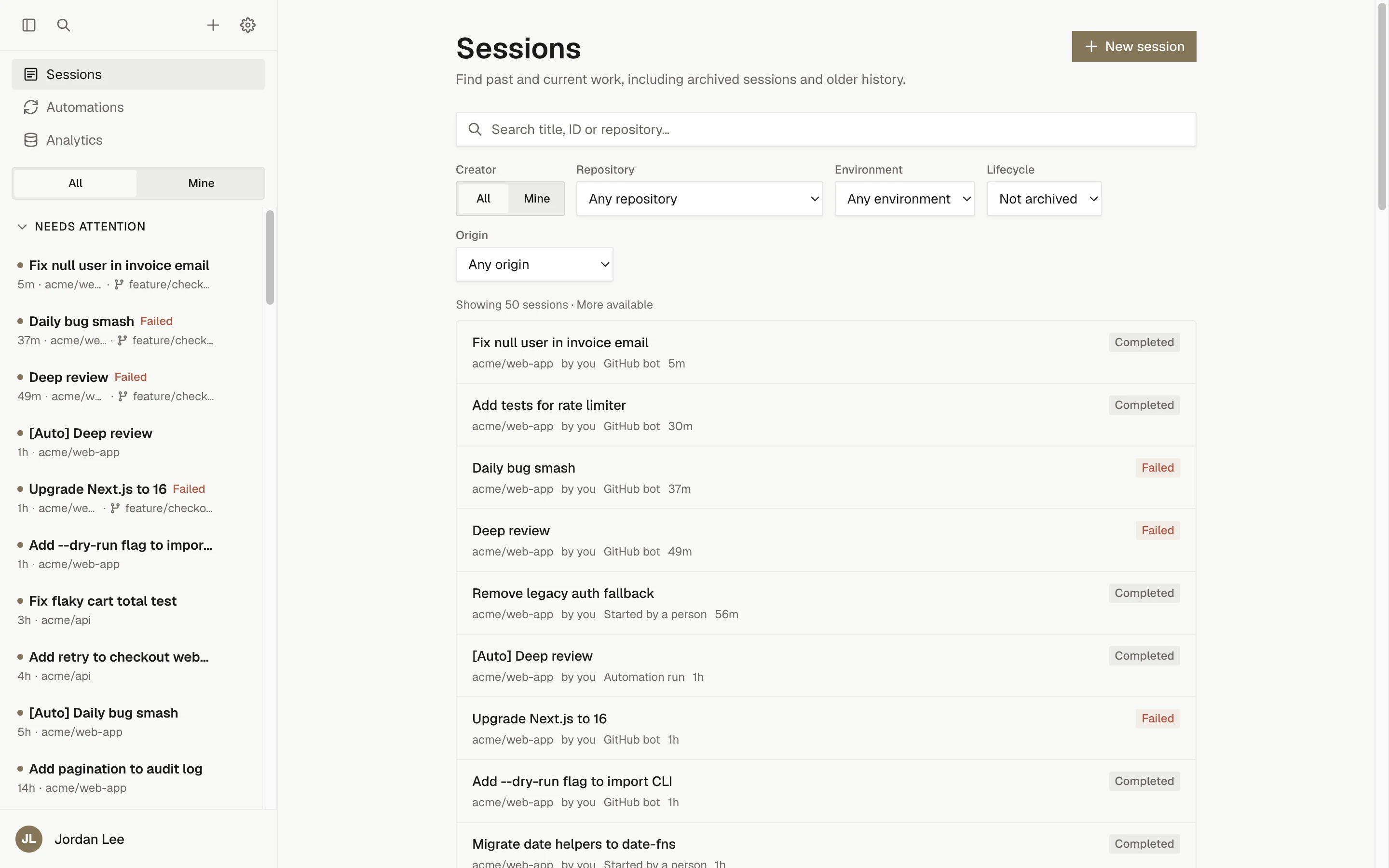
The sidebar inbox
The left sidebar groups sessions into three collapsible sections. Each section remembers whether you left it open.
| Section | What lands here |
|---|---|
| Needs attention | Any session in the group has a finished turn you have not read yet. |
| In progress | A session in the group is active (a prompt is pending or running) and nothing is unread. |
| Recent | Everything else: completed, failed, cancelled, or draft sessions you have already read. |
A session moves between sections on its own:
- When a turn finishes, the session gets an unread mark for you and moves to Needs attention.
- Opening the session reads its latest finished turn (while the tab is visible), and it moves to In progress or Recent.
- Sending a prompt makes it
active, so it sits under In progress until the turn ends.
Archived sessions are not shown in the inbox. The Archived link at the bottom of the list opens the Sessions page filtered to archived sessions.
Each section loads a page at a time; use Load more at the bottom of a section to fetch older entries.
Badges and rows
- An accent dot before the title marks an Unread session.
- A Failed label appears on sessions whose last run failed.
- The row also shows relative time, the repository (or repositories), and the base branch when it is not
main. - A sub-task tag marks an agent-spawned child whose parent is not in the current list.
Child sessions
Sessions the agent spawned are nested under their parent, so a parent and its children are read as one group. A group is placed by its most demanding member: one unread child is enough to put the whole group under Needs attention. See Child sessions.
The owner filter
The All / Mine toggle above the list limits the inbox to sessions you started. When Mine is empty the list reads "No sessions started by you". Mine is a convenience for finding your own work, not an access boundary: anyone with session read access can see every session in the workspace.
Row actions
Open a row's menu (or long-press it on a phone) for:
- Rename: edit the title in place. Enter saves, Escape cancels.
- Mark as read: clears the unread mark without opening the session.
- Archive: opens the confirmation dialog. Archiving the session you are viewing returns you to the home page.
Rename and Archive require session lifecycle permission.
The Sessions page
Open Sessions from the sidebar navigation (the /sessions route). It is described as "Find past and current work, including archived sessions and older history."
Search
The search box reads "Search title, ID or repository…". Typing commits to the URL after a short pause, so a filtered view is shareable as a link. Clear it with the X in the box.
Filters
| Filter | Options |
|---|---|
| Owner | All, Mine |
| Repository | Any repository, or one repository you can access |
| Environment | Any environment, or one saved environment |
| Lifecycle | Not archived (default), Archived, All |
| Origin | Any origin, Started by a person, Automation run, Agent sub-task, GitHub bot, Linear bot, Slack bot |
Origins map to how the session was created: from the web, an automation run, a child spawned by an agent, or one of the GitHub, Linear, or Slack bots. The status text under the filters reports "Showing N sessions", with "More available" when there is another page; Load more fetches it. A link with unsupported filter parameters shows no sessions and offers Reset filters.
Result rows show a lifecycle label: Draft, Active, Completed, Failed, Archived, or Cancelled.
When the Lifecycle filter is Archived, the page adds a Manage archived sessions link to Settings › Data Controls, where you can unarchive sessions.
New session
The New session button at the top of the page (and the plus icon in the sidebar) opens the composer. It is shown only when you can create sessions.
Rename and archive
Rows on the Sessions page open the session; they have no action menu. Rename and archive a session from its row menu in the sidebar, or rename it by clicking the title in the session header. To restore archived sessions, see Data controls.
Keyboard shortcuts
| Action | Default |
|---|---|
| Open the command menu (quick search of recent sessions) | Cmd/Ctrl+K |
| New session | Cmd/Ctrl+Shift+O |
| Toggle the sidebar | Cmd/Ctrl+/ |
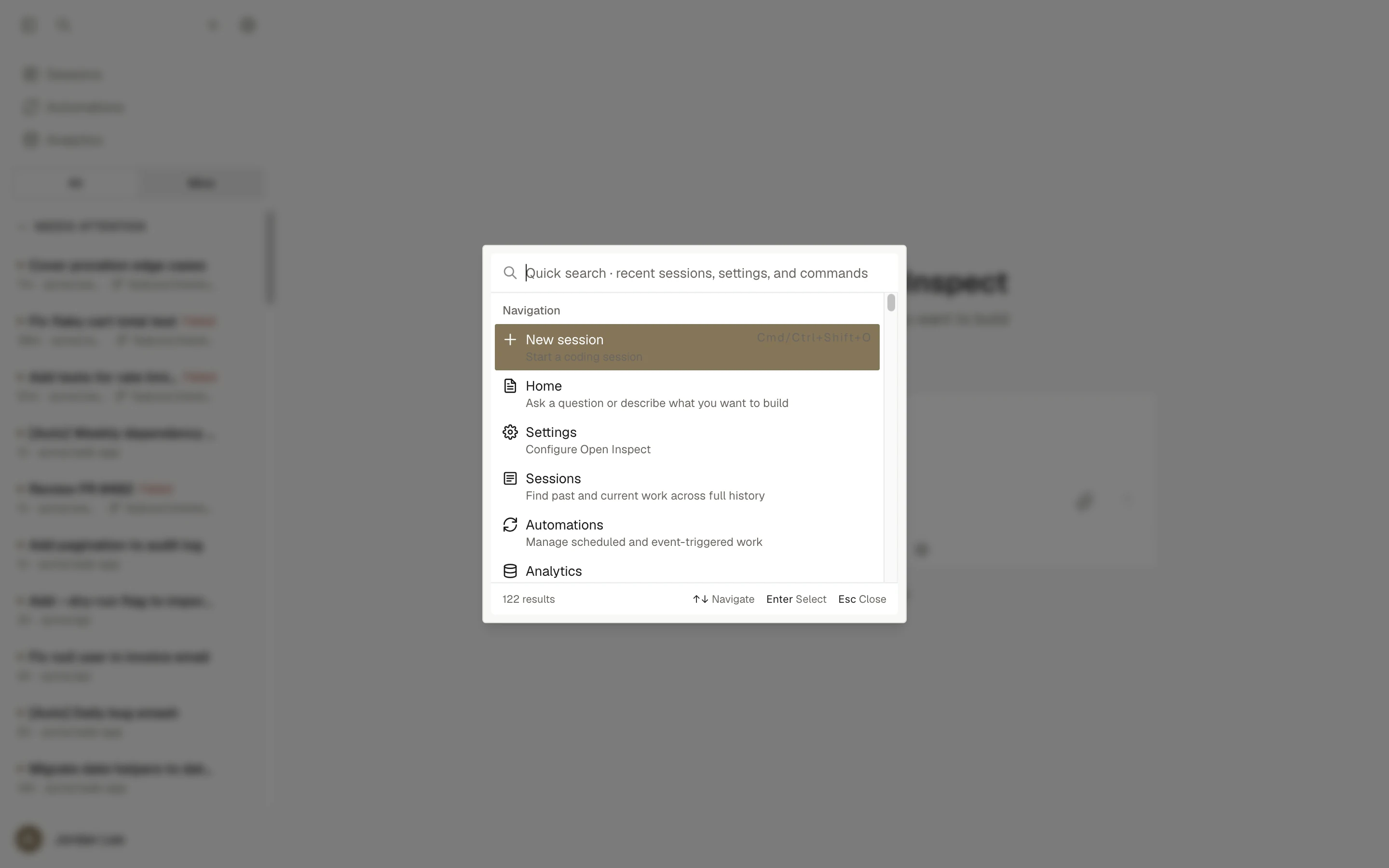
All of these can be rebound under Settings › Keyboard. See Keyboard shortcuts.
Troubleshooting
| Symptom | Cause | Fix |
|---|---|---|
| A session stays under Needs attention after you opened it | The latest turn is read only while the tab is visible; a background tab waits | Bring the tab to the front, or use Mark as read from the sidebar row menu. |
| A session you expect is missing from the inbox | It is archived, or the Mine filter is on and someone else started it | Switch the owner filter to All, or open Sessions with Lifecycle set to Archived. |
| "You do not have permission to view sessions." | Your role has no session read access | Ask a workspace Owner or Administrator. See Workspace access. |
| Search finds nothing for a repository | Search matches title, ID, or repository text | Use the Repository filter instead of typing the repository name. |