Data controls: archive and restore
How archiving a session works, how to restore archived sessions from Settings › Data Controls, and what deletion and export capabilities exist.
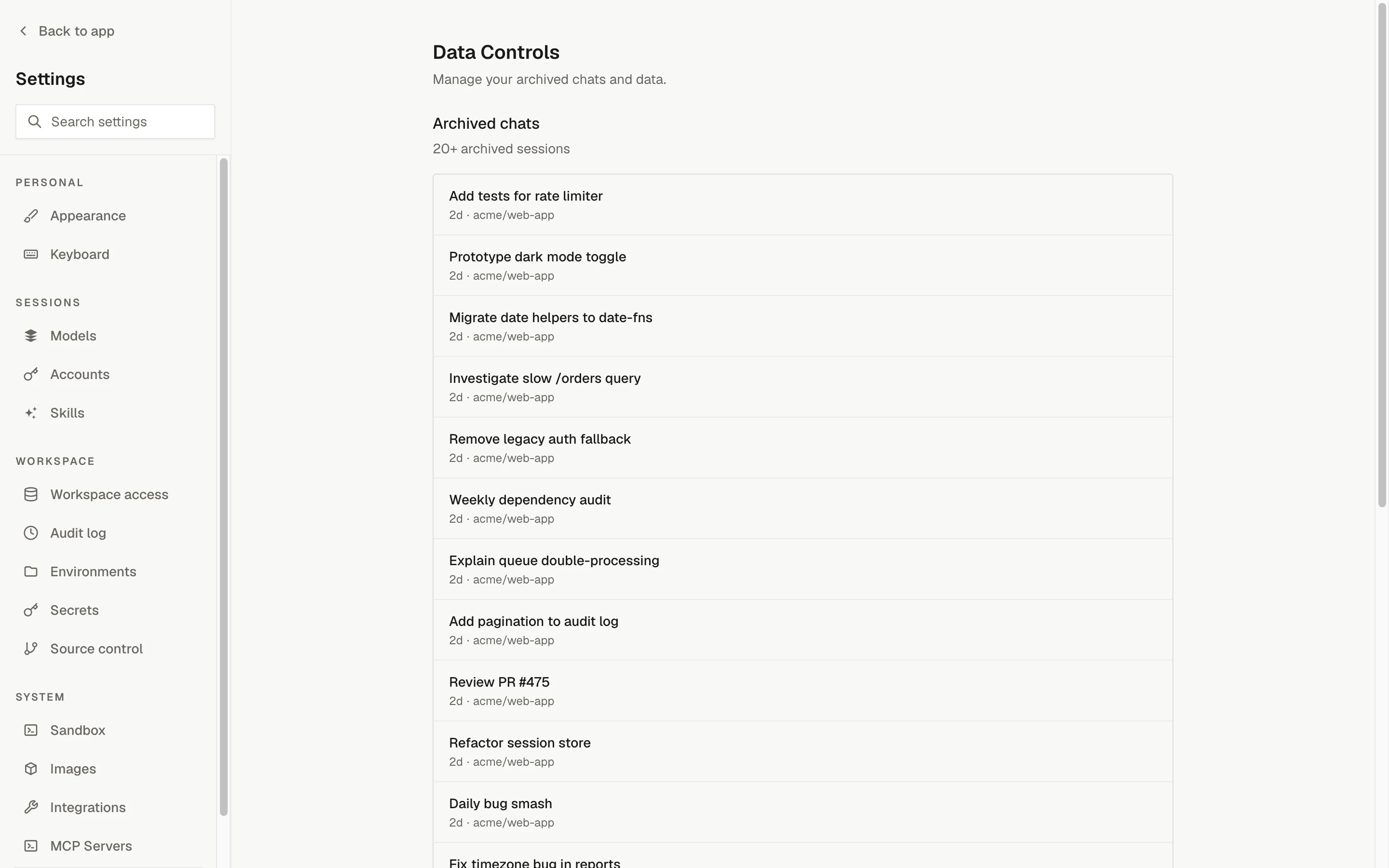
Archiving takes a session out of the inbox and the sessions list without deleting it; Settings › Data Controls is where you find archived sessions and bring them back.
Prerequisites
- Archiving and restoring require the
sessions.lifecyclepermission (Owner, Administrator, Member). Viewers can see archived sessions on the Data Controls page but do not get the Unarchive button.
Archiving a session
You can archive from the session page's action bar (Archive) or from a session's action menu in the sessions list. Either way a confirmation dialog opens:
Archive session Archive this session? You can restore archived sessions from Settings > Data Controls.
Click Archive to confirm or Cancel to keep the session.
What archiving does:
- The session's status becomes
archived. It disappears from the inbox and from the default sessions list, which exclude archived sessions. - The session can no longer be prompted. Archived is not a promptable status, and follow-ups are refused until the session is restored.
- The session's history, diffs, pull requests, and attribution are kept.
- The sandbox is not stopped by the archive itself. A running sandbox is left to reach its own inactivity or hard timeout under the session's sandbox settings. To stop work immediately, stop the prompt first, then archive.
Two situations are refused:
| Situation | Result |
|---|---|
| The session is cancelled | "Cancelled sessions cannot be archived." Cancelled is already a terminal state. |
| The session has queued or running work | "Cannot archive a session with queued work." Wait for the turn to finish or stop it first. |
In the web app a refused archive shows the toast "Failed to archive session".
Archiving a child session does not affect its parent. A child that is archived must be restored before its parent can send it another prompt; see Child sessions.
Batch archive
The web app has no multi-select for archiving. The control plane accepts a batch request, POST /sessions/batch-archive, for up to 25 sessions at a time, gated by the sessions.bulk_archive permission (Owner and Administrator). Each session in the batch is archived independently and reports its own outcome (archived, already_archived, skipped_cancelled, skipped_queued_work, not_found, or failed), so a refused session does not block the others. Sessions that failed can be retried on their own.
Restoring from Settings › Data Controls
Settings › Data Controls is described as "Manage your archived chats and data." Its Archived chats section lists the workspace's archived sessions 20 at a time, with a Load more button when more exist. Each row shows the session title (or its repository when untitled), when it was last updated, and the repository.
Find the session
Open Settings › Data Controls. Click a row to open the archived session, or use Load more to page further back.
Unarchive it
Hover the row and click Unarchive. The toast "Session unarchived" confirms it, and the row leaves the list.
Continue the work
The restored session returns to whatever status its history implies (for example completed if its last turn finished) and can be prompted again. It reappears in the inbox and the sessions list.
You can also restore from the session page itself: an archived session's action bar shows Unarchive in place of Archive.
When nothing is archived the page reads "No archived sessions. Sessions you archive will appear here."
Deleting sessions
Sessions are archived, not deleted: the web app has no control to delete a session from the session page, the sessions list, or Settings › Data Controls. The permission sessions.delete exists (Owner, Administrator, Member) and the control plane exposes a delete operation that removes the session from the workspace index, but nothing in the web app calls it. Archiving is the supported way to retire a session from day-to-day views while keeping its record.
Session export
For operators and service integrations, the control plane can export session traces in bulk as newline-delimited JSON, one session per line, with an option to include each session's messages. This is an API capability for backups and offline analysis; it has no page in the web app. See the self-hosting guide for how operators authenticate service calls.
Troubleshooting
Next steps
Analytics
What the Analytics page measures, how each card and chart is calculated, and how session cost is derived.
Security and trust model
The trust boundaries of an OpenInspect deployment, which tokens exist and what they can reach, how secrets and sandboxes are contained, and a checklist to complete before production use.