The session page
A tour of the session page, from the header and timeline to the composer, the right sidebar, and the details overlay on small screens.
This page walks through everything on a session page so you know where to look while the agent works and what each control does.
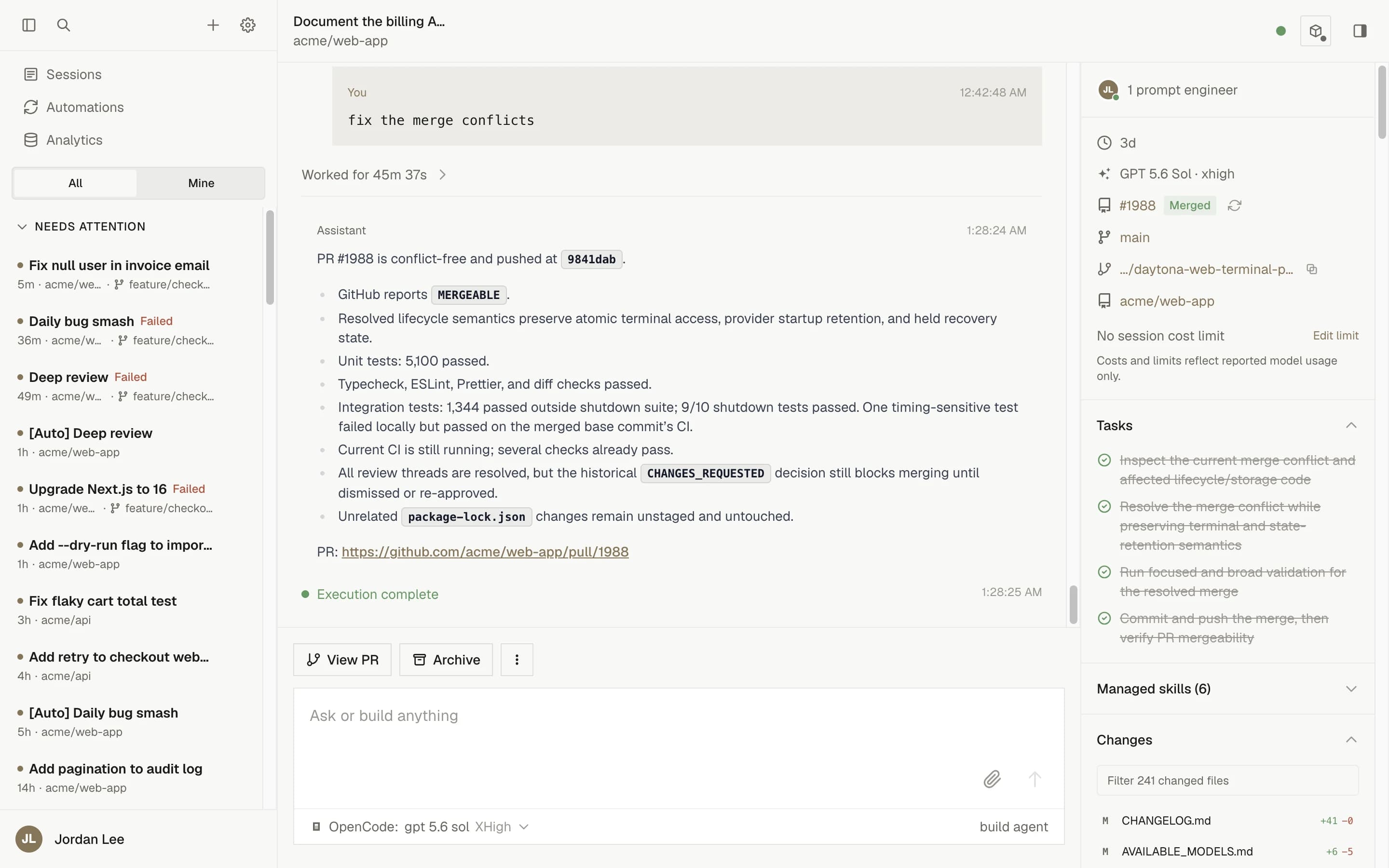
A session page has four areas: the header at the top, the timeline in the middle, the composer at the bottom, and a right sidebar with session details. On phones and tablets the sidebar becomes a details overlay.
The header
The header shows the session title with the repository name under it on desktop.
- Title. Click the title to rename the session (the tooltip says "Click to rename"). Press Enter to save or Escape to cancel. Renaming needs the
sessions.lifecyclepermission; without it the title is plain text. - Connection dot. A small dot reports your browser's connection to the session: Connected, Connecting..., Reconnecting..., or Disconnected. A reconnect can take a few minutes; the page says "Reconnecting..." rather than "Disconnected" while it waits.
- Sandbox status. The boxed icon opens a "Sandbox" popover with the current status and a one-line explanation; while the sandbox boots, the label shows the phase in progress ("Starting runtime", "Cloning repository", "Running setup.sh", "Starting services", "Installing skills", or "Starting agent"). After a failed boot the popover names the failed phase and shows the provider's reason, and people with sandbox access get "Open provider dashboard"; see Lifecycle and statuses for what each status means.
- Session details toggle. On large screens a sidebar icon shows or hides the right sidebar. On medium screens a "Details" button opens the details overlay instead.
On phones the header keeps only the title. A status strip below it appears when there is something to report (a reconnect in progress, or any sandbox state other than Ready), and the "Session actions" menu holds the sandbox status, Details, View preview, View PR, Media, Copy link, and Archive or Unarchive.
The timeline
The timeline is the shared record of the session. Everyone connected sees the same events.
| Row | What it looks like |
|---|---|
| Your prompt | A highlighted block labeled "You". Prompts from other people show their name and avatar. Attached images appear under the text. Hover to reveal "Copy markdown". |
| Assistant response | A block labeled "Assistant" rendered as Markdown. File paths link to the file in the repository. |
| "Thinking..." | A pulsing row at the bottom while the agent is processing a prompt. |
| Work group | A collapsible row such as "Worked for 2m 14s" that folds the tool activity for one prompt. Expand it to read what the agent did. |
| Tool activity | Rows showing the tool name and a short summary (Read, Edit, Apply Patch, Bash, and others). Click a row to expand its input and output. Sub-agent tasks show as their own rows with "Task activity", "Instructions", and "Result" disclosures. |
| Status rows | "Git sync", "Execution complete", "Execution failed", and "Error" rows, colored by outcome. Warnings appear in yellow. |
| "Context compacted" | A divider marking where the agent compressed its context to keep working on a long session. |
| "Resumed by PR feedback" | A header on a prompt that PR Feedback Autofix queued from a review or PR comment, with "PR comment" or "Review", "Human" or "Bot", and an "Open feedback" link. |
| Pull request card | "Opened pull request #12", "Updated pull request #12", or "Create pull request failed". Expand it to see the title, the branch route ("feature-branch into main"), the description, a Draft, Open, or Updated badge, and an "Open PR" button. |
| Screenshot or video card | A preview with a caption, labeled "Screenshot" or "Video". Click it to open the media viewer. |
Older events load as you scroll up. The view stays pinned to the bottom while new events arrive unless you have scrolled away.
The composer
The composer sits below the timeline.
- The placeholder reads "Ask or build anything". While a prompt is running it changes to "Add a follow-up...".
- Attach images (the paperclip) opens a file picker. You can also paste or drag images into the box. Previews appear above the text and "Uploading…" shows while they upload. See attaching images for formats and limits.
- Send submits the prompt. The button tooltip shows the shortcut, Cmd/Ctrl+Enter by default. While a prompt is running the button reads "Queue" and the tooltip says "Queue follow-up; runs after the current prompt".
- Stop (the red square) appears only while a prompt is running and only if you have
sessions.lifecycle. Its tooltip reads "Stop current prompt; queued prompts will continue". - The bottom row holds the model and reasoning selector for the next prompt. You can change the model and effort for each follow-up; the harness cannot change. See choosing a model.
When a session cannot accept prompts the composer explains why. If the session's cost limit is reached it says "Session cost limit reached at $X of $Y" and tells you to raise or remove the limit. If the selected model is unavailable it says so. Archived and cancelled sessions cannot be prompted at all; see follow-ups, stopping, and cancelling.
Queued prompts
Prompts you send while a turn is running stack above the composer, in the order they will run. Each row has a clock icon and a "Remove queued prompt" button (with sessions.lifecycle). Removing a prompt puts its text back into the composer so you can edit and resend it.
The action bar
On desktop a row of buttons sits above the composer: View preview (when the session produced a preview URL, marked "(outdated)" if it is stale), View PR (or a "View PRs (n)" picker when the session opened several), Archive or Unarchive, a "Media (n)" count, and a More menu with Copy link and View in GitHub. Copy link copies the session URL to your clipboard.
Archive asks for confirmation: "Archive this session? You can restore archived sessions from Settings > Data Controls."
The right sidebar
The sidebar shows session details in sections. Some sections appear only when they have content or when you have the permission to use them.
| Section | What it shows | When it appears |
|---|---|---|
| Participants | Avatars of people in the session (up to four, with a green dot for those currently connected) and a count such as "2 prompt engineers". | Always, once presence has synced. |
| Details (no heading) | The block at the top of the sidebar: when the session was created, a "Parent session" link for child sessions, the model and reasoning effort, the environment name (or "Environment deleted"), the base branch, the working branch with a "Copy branch name" button, the repository link, and any non-fatal boot or runtime warnings (prefixed with the repository in multi-repository sessions). Multi-repository sessions list every repository under "Repositories" with a "primary" badge on the first. | Always; warnings only when the sandbox reported one. |
| Pull requests | One row per PR (#12, its head branch when there are several, and an Open, Draft, Merged, or Closed badge) with a "Sync PR status" refresh button. Legacy sessions without a PR show a "Create PR" link instead. | When the session pushed a branch or opened a PR. |
| Budget | "No session cost limit", "Session cost: $X", or "Session cost: $X of $Y limit", with an "Edit limit" control for people who can manage budgets. See spend limits. | When a limit is set, cost has accrued, or you can manage the budget. |
| Code server | An "Open Editor" link and a "Copy password" button, or "Editor starting…" / "Editor unavailable". | When code-server is enabled for the repository and you have sessions.sandbox_access. |
| VNC | An "Open Desktop" link, or "Desktop starting…" / "Desktop unavailable". | When the VNC desktop is enabled for the repository and you have sandbox access. |
| Terminal | A "Show" / "Hide" toggle for the in-page terminal and an "Open in new tab" link. | When the web terminal is enabled and you have sandbox access. |
| Tunnel URLs | One "Port 3000"-style link per configured tunnel port. Links are active only while the sandbox is ready. | When tunnel ports are configured and you have sandbox access. |
| Tasks | The agent's current task list with pending, in-progress, and completed items. | When the agent has published tasks. |
| Child sessions | Each child with its title, status badge, PR state, and last activity. Click a row to open it. | When the agent spawned children. |
| Managed skills | The selection used (All applicable, None, or a profile name), each pinned skill with its revision and digest, and why it matched (Global, Repository, or Environment). | Always, collapsed by default; says "No managed skills were pinned." when empty. |
| Changes | A "Filter N changed files" box and the list of changed files per repository. Click a file to open the Changes panel. | When the session has a repository. Says "Changes will be available after the first execution." until the first turn ends. |
| Media (n) | Compact cards for every screenshot and video the agent captured. | When there is at least one media artifact. |
Before the agent has produced anything the sidebar says "Tasks and artifacts will appear here as the agent works."
For the terminal, code-server, VNC, and tunnels see sandbox tools. For the Changes panel see reviewing changes.
Details on small screens
Below the large breakpoint the sidebar is not shown. Open the same content as a "Session details" overlay:
- On tablets, the "Details" button in the header slides a drawer in from the right.
- On phones, choose Details from the "Session actions" menu. The details open as a bottom sheet; drag the handle down or tap "Close" to dismiss it.
Escape closes the overlay on both layouts.
Keyboard shortcuts
Cmd/Ctrl+Enter sends the prompt from the composer, Cmd/Ctrl+K opens the command menu, Cmd/Ctrl+Shift+O starts a new session, and Cmd/Ctrl+/ toggles the left sidebar. All of these are rebindable under Settings › Keyboard. See the keyboard shortcuts reference.
Next steps
Workflow recipes
Step-by-step recipes for common background-agent workflows, from exploring a codebase to coordinating changes across repositories.
Follow-ups, stopping, and cancelling
How follow-up prompts queue behind a running turn, what Stop does, which session states can be prompted again, and when to start over.