Managed skills
Create, import, assign, and select reusable agent instructions that OpenInspect installs into sessions automatically.
Managed skills give agents reusable instructions and supporting files, so workflows such as deployments, code reviews, incident response, or project conventions do not have to be repeated in every prompt.
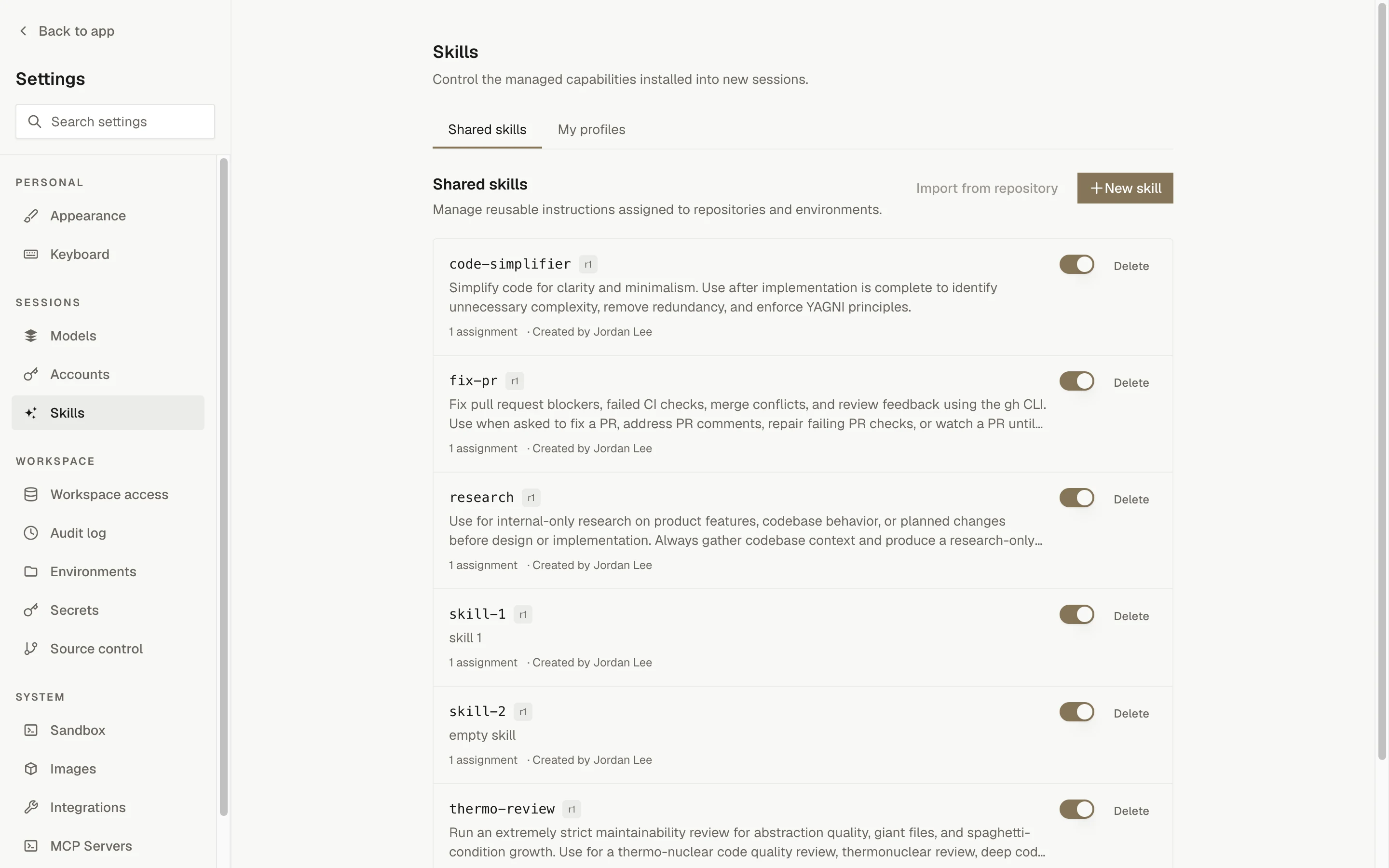
A skill can apply to every session or only to selected repositories and environments. Before starting a session you can include all matching skills, none of them, or a personal profile containing the ones you prefer.
Skills are trusted content
A skill is not a permission boundary. It can direct the agent to use any tool, credential, or network access already available in the session. Review instructions and scripts before enabling them.
Prerequisites
| Role | What you can do |
|---|---|
| Owner or Administrator | Create, edit, enable, disable, assign, and delete shared skills (the skills.manage permission). |
| Member | View shared skills and create or edit your own personal profiles (skill_profiles.manage_own). |
| Viewer | View shared skills. |
See Workspace access for how roles are assigned.
Quick start
Create the skill
Go to Settings › Skills. On Shared skills, click New skill. Enter a canonical name, description, and instructions.
Choose where it applies
Pick the repositories or environments the skill should apply to. New skills apply to All sessions (global) by default.
Validate and save
Click Validate, review the generated SKILL.md, then click Create skill.
Use it in a session
Start a new session. Leave the skill selector on All applicable to include every skill that matches the selected target. Expand Managed skills in the session's right sidebar to see which skills and revisions were included.
Skills, assignments, and profiles
| Concept | Purpose | Who can use it |
|---|---|---|
| Shared skill | Stores reusable instructions and optional supporting files | Every session target it is assigned to; managed by Owners and Administrators |
| Assignment | Controls which session targets a shared skill applies to | Managed by Owners and Administrators |
| Personal profile | Saves a preferred subset of shared skills for session creation | Only the profile's owner |
Profiles do not change a skill's assignments. If a profile contains a disabled skill or one that does not apply to the selected target, that entry is ignored.
Shared skills are installation-wide: a change by an Owner or Administrator affects every matching session started afterwards, so coordinate changes with the other people who manage skills.
Creating a shared skill
Open Settings › Skills › Shared skills and select New skill.
Skill content
| Field | What to enter |
|---|---|
| Canonical name | Required. A unique name of lowercase letters, numbers, and single hyphens, such as deploy-service. It cannot be changed later. |
| Description | Required. When and why the agent should use the skill. |
| Instructions | The workflow, rules, examples, and expected outcomes, in Markdown. May be empty, but recommended for most skills. |
Write instructions that make the trigger and the outcome clear:
## When to use

Use this skill when deploying the API service to staging.

## Workflow

1. Run the pre-deployment checks in `scripts/preflight.sh`.
2. Summarize any failed checks and stop before deployment.
3. Deploy using the repository's documented staging command.
4. Report the deployed revision and health-check result.
Optional fields
- License records licensing information for the skill.
- Compatibility describes environment or tool requirements.
- Metadata accepts a JSON object whose keys and values are strings, for example
{"team":"platform"}.
OpenInspect generates the skill's SKILL.md from these fields. Do not add it as a supporting file.
Supporting files
Select Add file to include text-based references, templates, assets, source files, or scripts, using relative paths:
references/runbook.md
assets/review-template.md
scripts/preflight.sh
Supporting files must be UTF-8 text; binary uploads and archive imports are not supported. Mark a file Executable only when its path is under scripts/. You can author files in the editor or import them from a repository. Skills cannot be imported from a marketplace, a local directory, or an archive.
Validate before saving
Click Validate to check the skill without saving it. The result shows the generated SKILL.md, the total content size, and a SHA-256 digest of the content. Validation is optional; Create skill and Save new revision run the same checks.
Importing a skill from a repository
Settings › Skills › Shared skills › Import from repository reads a skill directory (a SKILL.md plus its supporting files) from a connected repository.
Choosing a source
| Field | What to enter |
|---|---|
| Repository | Any repository the OpenInspect app installation can read. |
| Branch, tag, or commit | Optional. The repository's default branch is used when empty. |
| Subdirectory | Optional path to the skill inside the repository. Leave empty when the root holds SKILL.md. |
| Canonical name | Optional. Defaults to the name in SKILL.md, then to the last segment of the source path. |
To import one skill from a repository that holds several, name its subdirectory. If the chosen path has no SKILL.md, the error lists the subdirectories that do. Repeat the import for each skill; importing several at once is not supported.
How SKILL.md maps onto a managed skill
name, description, license, compatibility, and metadata become the matching fields, and everything after the frontmatter becomes the instructions. Any other frontmatter key (for example allowed-tools or version) has no managed-skill field; it is reported in the preview and then left behind. All other files in the directory become supporting files. OpenInspect regenerates SKILL.md from the mapped fields, so the stored file is not byte-identical to the upstream one.
Preview and review
Nothing is stored until you review the preview: the resolved commit, every file and its size, the total size, the content digest, the generated SKILL.md, and any mapping warnings. Assignments are chosen as in the create flow. Confirming re-reads the source and refuses to save if the repository changed since the preview.
An import is rejected as a whole, never partially. Reasons include an unreachable repository, a missing ref or SKILL.md, unreadable frontmatter, a binary or oversized file, an executable outside scripts/, a symlink or submodule, or a name that is already taken. Every limit in Limits and file rules applies.
Provenance and re-importing
An imported skill records its source repository, requested ref, resolved commit, subdirectory, and a digest of the imported bytes (distinct from the revision digest, which covers the whole stored revision). A moving ref is pinned to the commit it resolved to.
Open Imported source on the skill to pull the source again. Re-import reads the recorded repository and subdirectory; only the ref can be changed. Changed content is saved as a new revision; unchanged content adds nothing. Nothing syncs on its own, and existing sessions are never affected. Hand edits to an imported skill are allowed and keep its source, so a later re-import replaces them with the source's content.
Review imported scripts
Importing pulls third-party instructions and scripts into an installation-wide, on-by-default
catalog. Review the preview, especially anything under scripts/, before confirming.
Assigning a skill
A skill applies when any one of its assignments matches the session target.
| Assignment | Applies to |
|---|---|
| All sessions (global) | Every session, including sessions without a repository |
| Repository | Sessions containing the selected repository |
| Environment | Sessions launched from the selected environment |
You can select several repositories and environments. An environment session can match a global assignment, the environment assignment, and assignments for repositories inside that environment.
If you remove all assignments, the skill stays in the catalog but applies to no new session until it is assigned again. Assignments do not override the skill's enabled or disabled state.
Editing and managing skills
Select a skill under Settings › Skills › Shared skills to edit its content, supporting files, or assignments.
- Save new revision saves your changes. Content changes create a revision; changing assignments alone updates the scope without a new revision. The canonical name cannot be edited.
- The switch beside a skill enables or disables it. Disabled skills are excluded from new sessions.
- Delete removes a skill from the catalog. There is no restore.
- If another user updates the skill while you are editing it, your save is rejected so you do not overwrite their changes. Reload the latest revision and apply your changes again.
Edits, assignment changes, disabling, and deletion affect future sessions only. Existing sessions keep the exact revisions selected when they were created.
Personal profiles
Profiles save a subset of shared skills you select repeatedly. They are private to your account.
- Go to Settings › Skills › My profiles.
- Click New profile.
- Enter a unique profile name.
- Select the shared skills to include.
- Click Save profile.
A profile is a filter, not an override. At session creation, only profile skills that are both enabled and assigned to the selected target are included. Disabled skills stay visible in the profile editor with a (disabled) suffix. Deleting a profile does not delete its shared skills.
Choosing skills for a session
After selecting no repository, a repository, a repository set, or an environment on the new-session page, open the skill selector beside the model and reasoning controls.
| Selection | Result |
|---|---|
| All applicable | Every enabled skill whose assignment matches the target. This is the default. |
| None | No managed skills. |
| Personal profile | The enabled, applicable skills saved in that profile. |
The number beside the selector previews how many skills will be included. If a profile shows "N ignored", those entries are disabled or not assigned to the selected target.
Sessions without a selector
Automations and integrations without a skill selector use All applicable. Child sessions created by an agent inherit the parent's exact set of skills. In every case OpenInspect validates and installs the selected skills before the agent starts ("Installing skills" in the session header); if selected content cannot be fetched, validated, or installed, the session fails to start.
Inspecting skills in a session
Expand Managed skills in the session's right sidebar to see the selection used (All applicable, None, or a profile name), each skill's canonical name and description, the pinned revision and abbreviated content digest, and why it matched (Global, Repository, or Environment).
Skills are pinned when the session is created. Restarting or restoring the session keeps the same revisions. Start a new session to use the latest catalog.
How skills reach each harness
| Harness | Where skills are installed |
|---|---|
| OpenCode | Installed into the session workspace during the "Installing skills" boot phase, alongside the bundled skills. |
| Claude Agent | Staged under the per-sandbox Claude config directory (~/.openinspect/claude/skills), alongside the bundled skills. |
See agent harnesses for the differences between the two.
Limits and file rules
| Constraint | Limit |
|---|---|
| Canonical name | 64 characters |
| Description | 1,024 characters |
| License | 200 characters |
| Compatibility | 500 characters |
| Metadata key | 100 characters |
| Metadata value | 500 characters |
| Supporting files | 99 per skill revision |
| Individual file | 256 KiB |
| Complete skill revision | 1 MiB |
| Managed skill content in a session | 5 MiB |
Supporting-file paths must be relative, use / (no absolute paths or backslashes), contain no empty, ., or .. segments, be at most 10 segments or 240 UTF-8 bytes, contain no control characters, be unique, and not be SKILL.md.
Canonical names must be unique. The names agent-browser, record-video, upload-screenshot, visual-verification, and customize-opencode are reserved by the sandbox runtime.
Troubleshooting
Next steps
Source control settings
Set draft-mode and label defaults for pull requests, override them per repository, and configure commit signing for agent commits.
MCP servers
Give agents extra tools by registering local or remote MCP servers, scoping them to repositories, and keeping local servers fast to start.