Automations
Run coding agents on a schedule or in response to webhooks, Sentry alerts, Slack messages, and GitHub events.
An automation stores a repository selection, a model, and a set of instructions once, then starts a new session every time its trigger fires.
What an automation does
Each firing creates an ordinary session. The session clones the configured repository, runs your instructions on the OpenCode or Claude Agent harness you chose, and can open a pull request like any other session. Sessions started by an automation are titled [Auto] <automation name> and appear in the sessions list alongside interactive sessions.
Every trigger type follows the same path from firing to outcome, and repeated failures pause the automation:
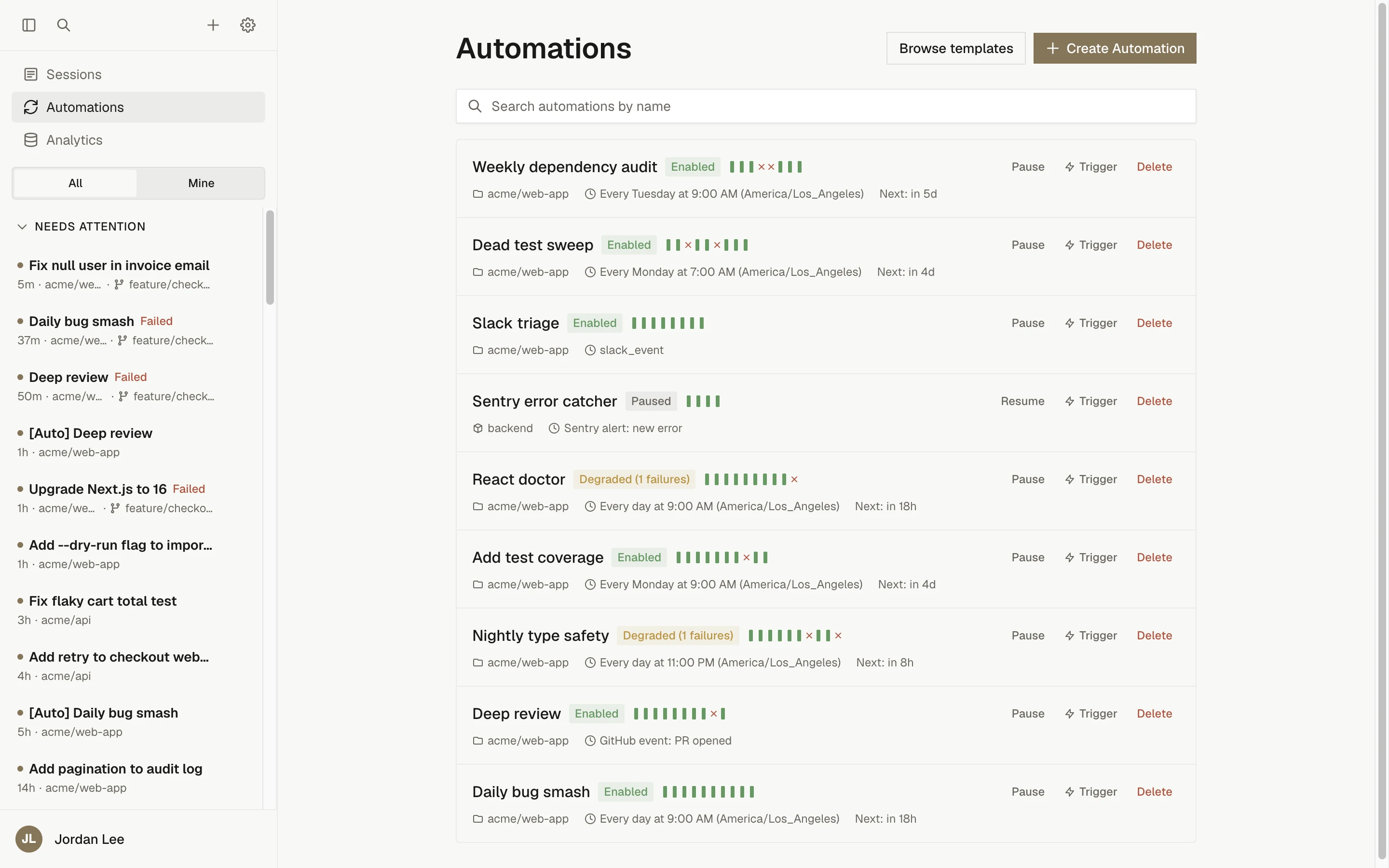
Open Automations in the sidebar to see every automation in the workspace, or click Browse templates to start from a pre-built idea.
Trigger types
| Trigger | Fires when | Availability |
|---|---|---|
| Schedule | A cron schedule comes due | Available |
| Inbound Webhook | Any system sends an authenticated HTTP POST | Available |
| Sentry Alert | A Sentry Custom Integration delivers a new error, regression, or metric alert | Available |
| Slack Message | Someone posts a matching message in a watched Slack channel | Available |
| GitHub Event | A pull request, issue, comment, check suite, or workflow run event arrives | Available when the GitHub bot is deployed |
| Linear Event | Linear issue activity | Planned (shown as "Soon" in the trigger picker) |
The trigger type is fixed after creation. To change it, create a new automation.
Common use cases
- Nightly or weekly dependency updates that open a pull request.
- Reacting to a deploy or incident webhook from your own tooling.
- Triaging new Sentry issues and opening a fix PR.
- Reviewing pull requests as they open.
- Recurring reports posted back to Slack.
Create your first automation
A step-by-step tutorial for a weekly scheduled automation.
Schedules
Presets, custom cron expressions, timezones, and Trigger Now.
Inbound webhooks
Trigger from any system with a JSON POST and JSONPath filters.
GitHub event triggers
Pull request, issue, comment, and CI events with conditions.
Slack message triggers
Watch channels and reply in-thread.
Sentry alerts
New errors, regressions, and metric alerts.
Multi-repository automations
Fan one scheduled firing out across up to 10 repositories.
Automation templates
Pre-filled starting points in the Templates gallery.
Who can create and manage automations
Everyone with automation read access, Viewers included, sees every automation and its run history. Members create automations and manage and trigger their own; Administrators and Owners manage and trigger any. Scheduled and event-driven runs execute under the owner's authority, while a Trigger Now run executes under the authority of the person who clicked it. The full role table and run-authority rules are in Workspace access.
Automation statuses
The badge on each automation shows one of three states:
| Status | Meaning |
|---|---|
| Enabled | Ready to fire on its trigger. |
| Degraded | Enabled but has recent consecutive failures. The badge shows the count, for example "Degraded (2 failures)". |
| Paused | Not firing. Either paused by a person or auto-paused after repeated failures. |
Run statuses
Each firing appears as one row in the automation's Run History:
| Status | Meaning |
|---|---|
| Starting | A session is being created for this run. |
| Running | At least one session is executing. |
| Completed | Every session finished successfully. |
| Failed | Every session failed. The failure reason is shown on the row. |
| Partial failure | A multi-repository firing where some repositories completed and some failed. |
| Skipped | The firing was skipped because a previous run was still active. |
Click View session on a row to open the session with its full output and artifacts.
Concurrency
Scheduled and manual triggers allow one active run per automation: a schedule slot that comes due during an active run is recorded as Skipped, and Trigger Now is rejected. Event-driven triggers use per-event concurrency keys, so unrelated events (for example two different pull requests) can run at the same time. The scheduled rules are in Schedules; event rules are on each trigger's page.
Auto-pause after failures
An automation that fails three consecutive times is paused automatically. Scheduled and manual runs both count. Runs that outlive their execution budget count as failures too. Skipped firings count neither way.
Click Resume to re-enable the automation. Resuming resets the failure counter and, for schedules, computes the next run from the current moment. A successful Trigger Now while paused also resets the counter without resuming.
Execution timeout
Each run's session has an execution budget: the sandbox timeout in effect for the run's repository or environment (see Sandbox settings), otherwise the operator's EXECUTION_TIMEOUT_MS, otherwise 2 hours. The session fails the prompt at the budget, and the run fails with it. If that completion never reaches the scheduler, a sweep fails the run with reason execution_timeout after an additional grace period of 100 minutes. A run that reports success after the sweep already declared it lost is corrected back to Completed, but the failure strike already counted stays until the next fully successful firing.
Limits
| Limit | Value |
|---|---|
| Automation name | 200 characters |
| Instructions | 15,000 characters |
| Repositories and environments per automation | 10 combined (schedule triggers only; event triggers take 0 or 1 repository) |
| Minimum schedule interval | 15 minutes |
| Inbound webhook payload | 64 KB |
| Sentry webhook payload | 256 KB |
| Concurrent runs per automation | 1 for scheduled and manual triggers |
| Consecutive failures before auto-pause | 3 |
| Run execution timeout | The session's execution budget (2 hours by default), plus a 100-minute sweep grace before execution_timeout |
Next steps
Provider accounts and API keys
Connect ChatGPT, SuperGrok, and Claude subscriptions as installation-wide provider accounts, set defaults for unattended sessions, and manage account lifecycle.
Create your first automation
Build a weekly scheduled automation that opens a dependency-update pull request, test it with Trigger Now, and read its run history.